Introducing Time Story: Turn Before and After Photos into Time-Lapse Videos
Time Story transforms 2-4 before and after photos into smooth AI-generated time-lapse videos. Aging, renovations, seasons, nature — all from still photos.

Photos capture moments. But change happens between moments -- in the days, months, and years that pass when no camera is pointed at the subject. A child grows up. A kitchen gets renovated. A tree cycles through four seasons. The most interesting part of these stories is the transformation itself, and that transformation is exactly what photos miss.
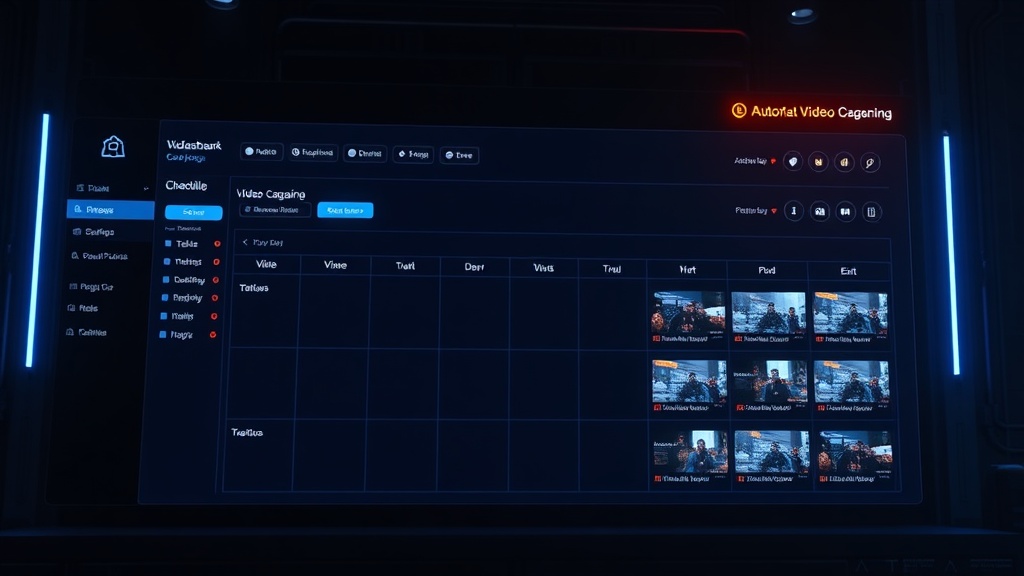
Today we are launching Time Story, a new tool in Dobidy that fills in what the camera never captured. Upload 2 to 4 photos showing change over time, and Time Story's AI generates smooth video transitions between them -- turning still snapshots into flowing time-lapse videos that compress weeks, years, or decades into seconds.
No video footage required. No editing software. Just your photos and a few minutes.
What Time Story Does
Time Story takes photos of the same subject at different points in time and generates the visual transformation between them. The AI analyzes each consecutive pair of images -- studying what changed, what stayed the same, and what the plausible in-between states look like -- then renders a smooth 5-second video clip that bridges the gap.
If you upload a photo of yourself as a child and a photo from last week, Time Story generates a video of you aging. If you upload a photo of your living room before a renovation and one after, it generates a video of the space transforming. The AI is not cutting between the images -- it is generating every frame of the transition.
Each pair of consecutive photos produces one 5-second clip. When you upload more than two photos, the clips are stitched together into a single continuous video.
How It Works
The workflow is three steps.
Step 1: Upload Your Frames
Select 2 to 4 photos showing your subject at different points in time. Arrange them in chronological order -- earliest first, most recent last. The photos should show the same subject or location, ideally from a similar angle and framing.
Step 2: Choose Your Quality
Pick a quality tier based on your needs. Free gives you 480p with a watermark -- good for testing and casual sharing. Paid tiers give you 720p without a watermark, with two quality levels to choose from.
Step 3: Download Your Video
Time Story generates your clips, stitches them together, and delivers a single video file. Download it and share it anywhere -- social media, your website, a client presentation, a family group chat.
The Math on Frames and Clips
Time Story generates one transition clip for each consecutive pair of photos. The math is simple:
- 2 photos = 1 clip = 5 seconds of video
- 3 photos = 2 clips = 10 seconds of video
- 4 photos = 3 clips = 15 seconds of video
More frames means a longer video with more gradual transitions. Two photos create a single dramatic transformation. Four photos tell a multi-stage story with smoother, more detailed progression.
Time Story vs Spatial Story
If you have used Spatial Story, the interface will feel familiar. Both tools use the same underlying pipeline -- upload photos, AI generates transition clips, clips get stitched together. But they solve fundamentally different problems.
Spatial Story is about movement through space. You upload photos of different locations within a space (entrance, hallway, living room), and the AI generates the camera movement between them -- as if a videographer walked through the area. The photos are different places at the same time.
Time Story is about change over time. You upload photos of the same subject at different points in time, and the AI generates the transformation between them. The photos are the same place at different times.
Same engine, different axis. Space versus time. Both produce surprisingly compelling video from nothing but still photographs.
6 Use Cases for Time Story
Aging and Growing Up
The most emotionally powerful use case. Upload a childhood photo and a recent one, and watch yourself age in 5 seconds. Add intermediate life stages -- teen years, twenties -- for a longer, more detailed journey through time. These videos consistently go viral because they tap into universal nostalgia. Full guide to aging videos.
Home Renovation
Before-and-after renovation content is everywhere, but a smooth morphing video captures the magnitude of transformation in a way that side-by-side photos cannot. Kitchen remodels, bathroom makeovers, garden landscaping -- any renovation with strong visual contrast makes excellent Time Story content. See our AI renovation before-and-after video page or read the full guide to renovation videos.
Seasons Changing
Photograph the same tree, garden, or street in different seasons and let Time Story generate the transitions -- leaves appearing, colors shifting from green to gold, snow arriving and melting. Seasonal content is evergreen by nature. Full guide to seasonal time-lapses.
Nature Transformations
Plants growing, flowers blooming, landscapes changing after storms or droughts, rivers rising and falling. Nature operates on timescales that cameras struggle to capture continuously. Time Story compresses those changes into watchable video from just a few reference photos. Full guide to nature time-lapses.
Fashion and Style Evolution
Show how personal style evolves over years or decades. Upload photos from different eras of your life -- each with its own fashion choices, hairstyles, and aesthetic -- and watch the evolution unfold. Fashion brands can use this to show how a product line or trend has changed over time. Full guide to fashion evolution videos.
Urban Change
Cities transform constantly. A neighborhood that was empty lots five years ago now has high-rises. A street that was under construction is now a bustling corridor. Upload historical and current photos of the same location and Time Story generates the urban transformation between them. Full guide to urban time-lapses.
Tips for the Best Results
The quality of your Time Story video depends heavily on the photos you provide. A few guidelines will significantly improve your output.
Keep the framing similar. The AI generates better transitions when the subject occupies roughly the same position and size in each photo. If your first photo is a close-up and your second is a wide shot, the transition will struggle. Crop your photos so the subject is framed consistently.
Match the lighting. A brightly lit indoor photo paired with a dimly lit one creates an awkward brightness shift in the transition. When possible, choose photos taken in similar lighting conditions, or at least adjust exposure so they are reasonably balanced.
Maintain chronological order. Always upload photos from earliest to most recent. The AI generates transitions that flow forward in time -- growth, aging, building, seasonal progression. Reversing the order produces transitions that feel unnatural.
Avoid extreme angle changes. A front-facing photo followed by a profile shot will confuse the transition AI. Keep the camera angle roughly consistent between consecutive frames. Small angle differences are fine; 90-degree shifts are not.
Choose clear before-and-after moments. The more visually distinct your photos are, the more impressive the transition. A kitchen renovation that changed the countertops but left everything else the same will produce a subtle transition. A full gut renovation with new cabinets, floors, and appliances will produce a dramatic one.
Pricing
Time Story uses Dobidy's credit system with clear per-tier pricing.
Free tier -- 480p resolution with a watermark. Limited to 2 photos (one 5-second clip). Up to 10 free generations per month, shared with Spatial Story. No credits required.
HQ tier -- 720p resolution, no watermark. 20 credits per clip. Upload up to 4 photos for up to 15 seconds of video.
Premium tier -- Highest quality generation at 720p, no watermark. 50 credits per clip. Same frame limits.
On the Basic plan ($9/month, 400 credits), you can generate 20 HQ clips or 8 Premium clips. On the Pro plan ($45/month, 2,000 credits), you can generate 100 HQ clips or 40 Premium clips. See the full breakdown on our pricing page.
Getting Started
Time Story is available now inside your Dobidy dashboard alongside Omni Tool and Spatial Story. Select it from the tool picker, upload your photos in chronological order, and generate your first time-lapse video in minutes.
If you are new to Dobidy, try Time Story free -- no credit card required. Upload two photos and see what AI-generated time-lapse video looks like with your own content.
For a deeper look at the best use cases, explore our guides on aging videos, renovation videos, and seasonal time-lapses. You can also browse all the types of AI transformation video you can create with Time Story. Or check out the best time-lapse video makers in 2026 to see how Time Story compares to other tools.

Dobidy Team
AI-powered video advertising platform
Ready to create your first video ad?
Upload your product photos and get a polished 10-second video ad. Just $9.
Get Started